

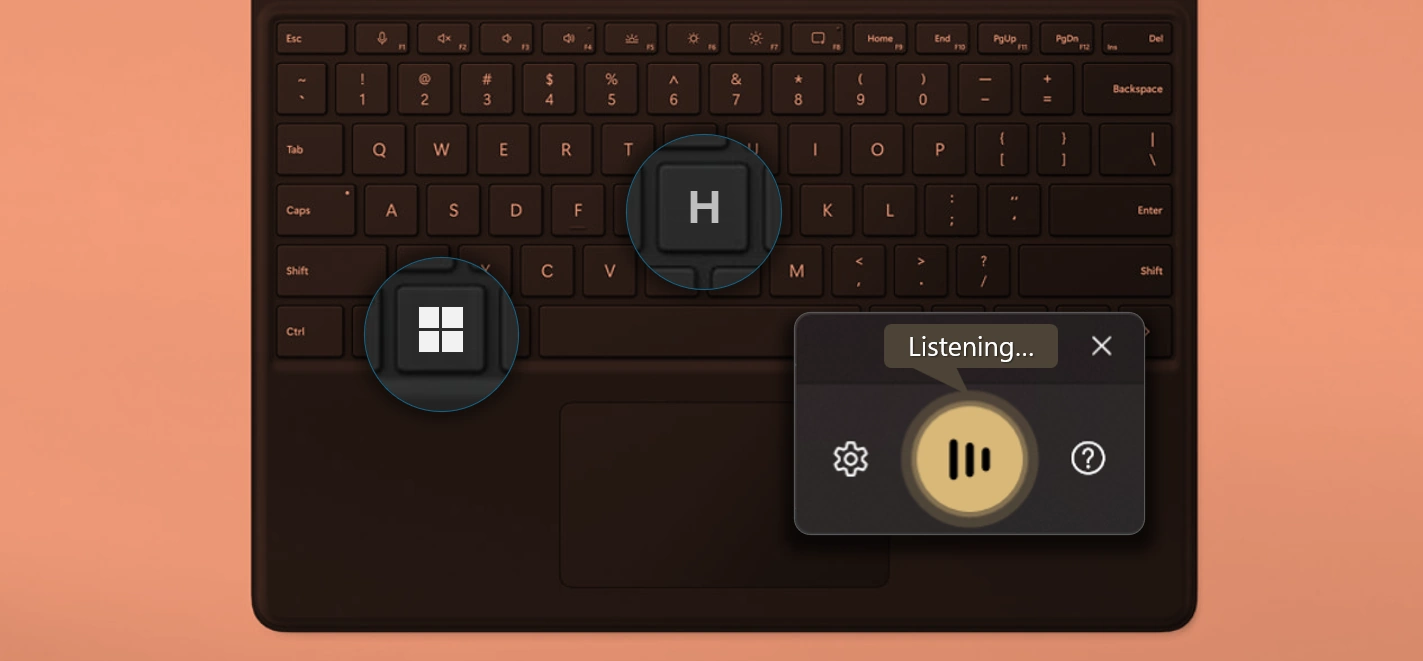
My most direct tip ever: type Windows key+H to use voice typing on your PC.
That’s it, that’s the tip. It works just like you may have seen on your phone: you press the key, you talk, and text appears for you.
Win + H
Why the H is it Win + H?
Let’s address the number one upfront question: V for voice typing wouldn’t work since V was already taken for pasting after copying, itself not being P because was already taken for printing. There’s just too much competition with all those other amazing Windows key shortcuts, so H it is. Not as instantly recognizable as the little 🎙️ mic symbol on your phone’s keyboard, but WinLogo+H activates voice typing just the same.
Why voice type?
If you’re like me, you can probably talk much faster than you can type. Writing a long email or prompt can take a lot of typing, but just saying what you want can be far easier. Especially with AI systems that don’t mind (or even work better with) the context and instructions that comes from rambling away verbally.
Pro tip: go to the settings gear while voice typing and choose automatic punctuation. If it gets something wrong you can always make direct edits or ask for a correction using phrases like in the table below.
Okay, why not use native voice chat, like AI’s offer?
Many chat bots offer native voice mode where everything is verbal – they listen to you talk and speak back audibly. That’s at times desirable, but the long-winded replies from AI aren’t always preferred. Perhaps you can read faster than you can listen to the response, or you may desire a silent reply for other reasons, or to have the text transcript. Regardless the reason: if you’re feeling verbal but want replies to be text, consider using Win+H to speak text prompt into the AI system and send it as text.
Quick Speaking Commands
| Voice typing command | What you can say |
|---|---|
| Stop or pause voice typing | Pause voice typing / pause dictation |
| Stop voice typing / stop dictation / stop dictating | |
| stop listening | |
| Delete last spoken word or phrase | Delete that |
| Erase that | |
| Scratch that | |
| Select last spoken word or phrase | Select that |
| Press Enter | Press Enter |
| Press Backspace | Backspace |
| Press Backspace | |
| Press Tab | Tab |
| Press Tab | |
| Press Space | Insert Space |
| Press Space |
Leave a Reply