

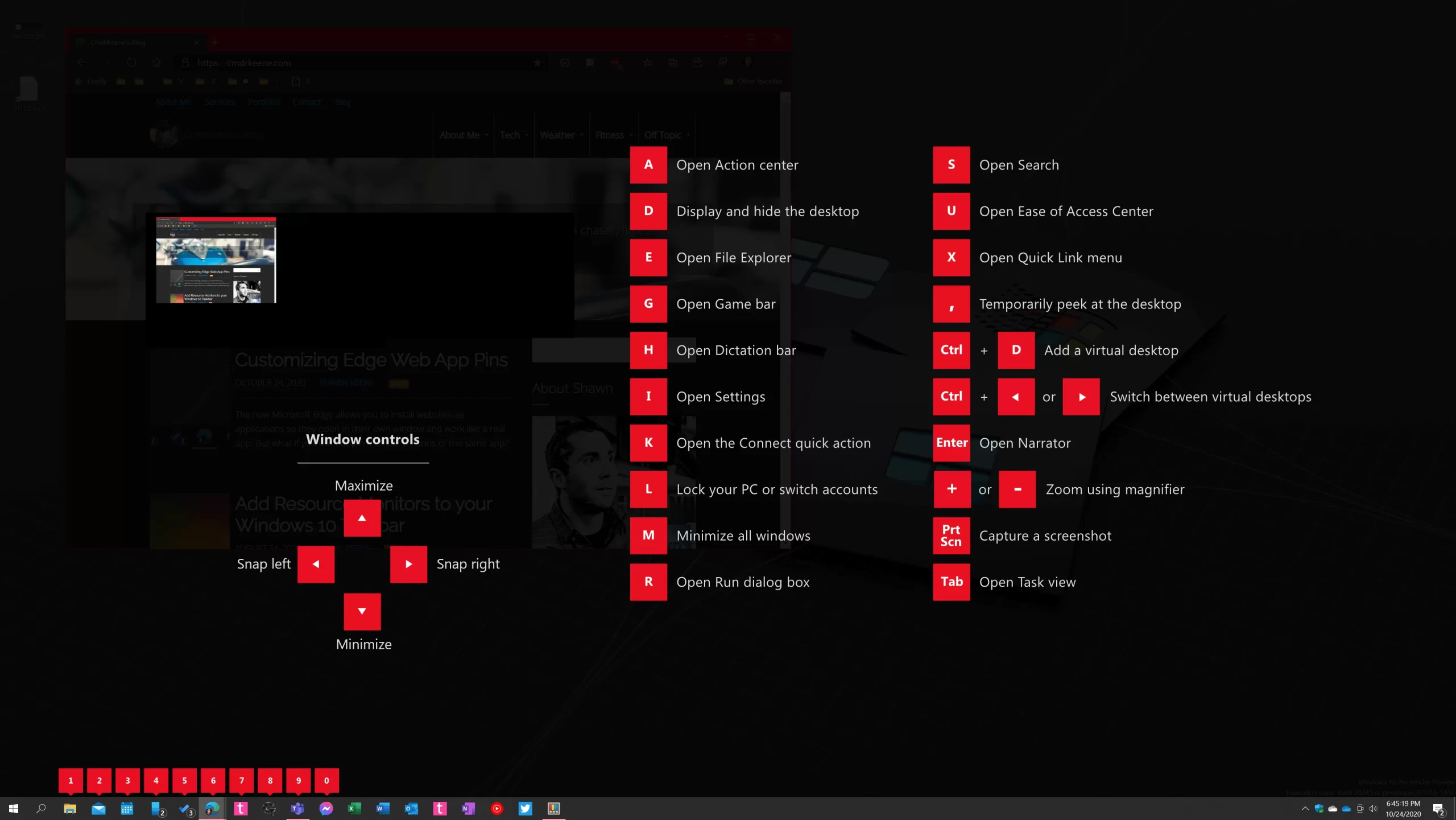
When an app is out of bounds, most users describe it as an app that opens but isn’t visible, or that they can see a thumbnail preview of it on the taskbar or alt-tab, but it’s nowhere to be seen.
Usually this happens if there has been a change to desktop topology like your your on-screen desktop size, display resolution, or DPI scaling factor. These changes can be caused by the user (changing the settings directly), implicitly trigged by changes to the physical display layout (plugging or unplugging a monitor, connecting to a projector), or trigged by opening a program that changes the resolution (most often games).
In my case it also happens anytime my DisplayPort connected monitor is turned off or on, something for which the monitor manufacturer (Samsung) and dock manufacturer (Microsoft) mutually blame each other. But I digress.
There are a few ways to fix the issue, and they all involve the keyboard. The mouse would only be useful if the app was already visible on the screen, in which case you could just drag it back into place and probably wouldn’t be reading this blog post right now.
Here’s what I’d try, with the easiest first.
First, consider if maybe you have an extra display enabled in your settings but not actually plugged in. Go to Windows Settings/System/Display, and if it shows more monitors enabled at the top than you actually have, use the settings or press Win+P to set which monitor that is actually being used. This should bring all your apps into view for you. If not, continue onward.
Unlike most tips for when you run into trouble, these steps below can also be safely practiced anytime, even if you’re not currently experiencing this problem. Try them and learn how to arrange your windows with the keyboard.
Windows Logo Key Method
- Make sure the out-of-view program is active is the active window that will receive keyboard input. Its taskbar button should be highlighted — if it’s not, click it now.
- Hold down the Windows Logo key, then tap the up-arrow on your keyboard.
- If that doesn’t help, hold down the Windows Logo key again and type left-arrow a few times to see if the window comes into view.
Why this may help: When you press Win+⬆️, the window becomes maximized which means it may fill your entire screen and let you then drag it wherever you want. If it doesn’t do anything (maybe because it maximized somewhere else), the next Win+⬅️ key combination repeatedly will bring the app to each display, eventually (hopefully) bringing it into view.
The Control Menu Method
This method is what us nerds did to solve this problem before the Windows logo + arrows shortcuts existed, and it’s a little more complicated but pretty dang reliable.
- As the previous method, first make sure the program is active. If not, make sure it is by alt-tab’ing to it first, or clicking the program’s icon on the taskbar.
- Hold down the Alt key, then type a single space. The system menu for that program window should appear (unless your Alt+Space has been hijacked by other applications such as PowerToys or Google for Desktop).
- Choose Move from that menu or just type an M … but don’t click/type anything else yet!
- Immediately tap any arrow key on your keyboard once (doesn’t matter which one). Your mouse pointer arrow should disappear (do not be alarmed, and still do not click or type anything yet).
- Carefully and without clicking, move your mouse pointer around until you find your pointer.
At this point, as you move your mouse, you should find that the window is “stuck” to your cursor, allowing you to position it where you want and then click to release it.

Related: That Windows button on your keyboard can do much more, and Microsoft PowerToys shows many common options when you hold the key down for a second.

My favorite is the numbers to open or switch to a window based on the icon position of the taskbar. I used Win+2 to open the snipping tool for years (until the PrintScreen key was able to do it directly).
Leave a Reply